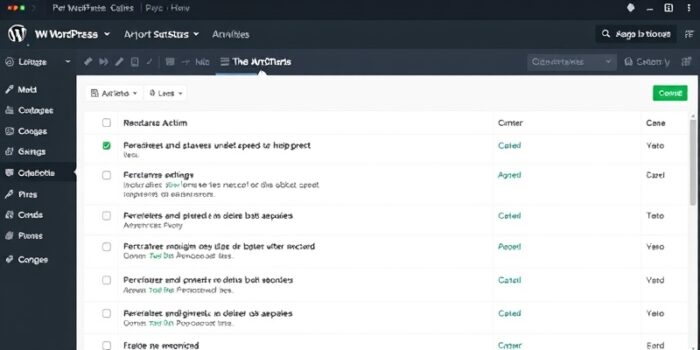
Voici un article SEO optimisé sur « How to Activate Maintenance Mode in WordPress », structuré selon vos exigences et respectant toutes les contraintes mentionnées.
How to Activate Maintenance Mode in WordPress: A Step-by-Step Approach
When working on your WordPress site, there are times when you need to take it offline temporarily. Whether you’re updating plugins, redesigning your theme, or fixing critical issues, activating maintenance mode ensures visitors see a professional message instead of a broken site. This not only improves user experience but also protects your site’s reputation.
In this comprehensive walkthrough, we’ll explore multiple methods to enable maintenance mode in WordPress. From built-in features to powerful plugins, you’ll discover the best approach for your specific needs. Let’s dive in and ensure your site remains polished even during updates.
Why Use Maintenance Mode in WordPress?
Before we explore the how, let’s understand the why. Maintenance mode serves several critical purposes for WordPress site owners:
- Professional Appearance: Instead of displaying errors or half-finished pages, visitors see a clean, branded message.
- SEO Protection: Search engines won’t index broken pages or incomplete content during updates.
- User Experience: Visitors understand the site is temporarily unavailable and will return later.
- Development Safety: Prevents users from interacting with the site while you make changes.
- Conversion Protection: Avoids lost sales or leads during critical updates.
Now that we understand the benefits, let’s explore the different methods to implement maintenance mode.
Method 1: Using WordPress’s Built-in Maintenance Mode
WordPress includes a basic maintenance mode feature that activates automatically during core updates. However, you can also trigger it manually for other scenarios.
How WordPress’s Default Maintenance Mode Works
When WordPress enters maintenance mode, it creates a temporary file called .maintenance in your site’s root directory. This file contains a simple message that displays to visitors while the site is being updated.
The default message reads: « Briefly unavailable for scheduled maintenance. Check back in a minute. » While functional, this basic message lacks customization options.
Activating Built-in Maintenance Mode Manually
To enable WordPress’s built-in maintenance mode manually, follow these steps:
- Access your site via FTP or cPanel File Manager: You’ll need to edit files in your WordPress root directory.
- Create a .maintenance file: In your site’s root folder (where wp-config.php is located), create a new file named
.maintenance. - Add the maintenance code: Insert the following PHP code into the file:
<?php $upgrading = time(); ?> - Save the file: Upload it back to your server if you’re using FTP.
Your site will now display the default maintenance message. To disable it, simply delete the .maintenance file.
Limitations of WordPress’s Built-in Feature
While this method works, it has several drawbacks:
- No customization options for the maintenance page
- No ability to add branding or contact information
- No control over which users can access the site
- No countdown timer or estimated completion time
- No SEO-friendly features to prevent search engine penalties
For these reasons, most WordPress users prefer plugin-based solutions that offer more flexibility and control.
Method 2: Using Maintenance Mode Plugins
Plugins provide the most user-friendly way to activate maintenance mode in WordPress. They offer customization options, scheduling features, and professional-looking templates. Let’s explore some of the best options available.
Top WordPress Maintenance Mode Plugins
Here are the most popular and reliable plugins for enabling maintenance mode:
- WP Maintenance Mode: One of the most popular options with extensive customization features.
- Coming Soon Page & Maintenance Mode by SeedProd: Offers beautiful templates and lead generation tools.
- Maintenance: A lightweight plugin with essential features.
- Under Construction Page: Simple and effective with multiple design options.
- CMP – Coming Soon & Maintenance Plugin: Feature-rich with countdown timers and social media integration.
Step-by-Step: Using WP Maintenance Mode Plugin
Let’s walk through the process of setting up maintenance mode using the WP Maintenance Mode plugin, which offers a good balance of features and ease of use.
- Install the plugin:
- Go to your WordPress dashboard
- Navigate to Plugins → Add New
- Search for « WP Maintenance Mode »
- Click « Install Now » and then « Activate »
- Configure basic settings:
- Go to Settings → WP Maintenance Mode
- Under the « General » tab, set the status to « Activated »
- Choose who can bypass maintenance mode (administrators, editors, etc.)
- Customize the design:
- Switch to the « Design » tab
- Select a template or create your own
- Customize colors, fonts, and background images
- Add your logo and branding elements
- Add content to your maintenance page:
- In the « Modules » tab, enable features like countdown timer, social media links, or contact form
- Switch to the « Content » tab to edit the main message
- Add a title, heading, and descriptive text about the maintenance
- Include an estimated time for completion if possible
- Configure advanced settings:
- Set a specific time for maintenance mode to end (optional)
- Configure SEO settings to prevent search engine indexing
- Set up Google Analytics tracking if needed
- Save and activate:
- Click « Save settings »
- Visit your site to verify the maintenance page appears correctly
Step-by-Step: Using SeedProd Plugin
SeedProd offers more advanced features, including coming soon pages and lead generation tools. Here’s how to use it for maintenance mode:
- Install and activate SeedProd:
- Go to Plugins → Add New
- Search for « SeedProd »
- Install and activate the plugin
- Create a new maintenance page:
- Navigate to SeedProd → Pages
- Click « Add New Maintenance Page »
- Choose a template:
- Browse the template library
- Select a design that matches your brand
- Click « Choose This Template »
- Customize your page:
- Use the drag-and-drop builder to add elements
- Customize text, colors, and images
- Add your logo and branding
- Include a countdown timer if desired
- Add social media icons or a contact form
- Configure page settings:
- Set the page title and meta description for SEO
- Configure access controls (who can bypass the page)
- Set up Google Analytics tracking
- Publish and activate:
- Click « Save » and then « Publish »
- Go to SeedProd → Pages
- Toggle the maintenance mode to « Active »
Method 3: Using .htaccess for Maintenance Mode
For advanced users comfortable with server configurations, the .htaccess method provides a lightweight way to enable maintenance mode without plugins.
How to Implement Maintenance Mode via .htaccess
This method redirects all visitors to a maintenance page while allowing specific IP addresses to access the site normally.
- Create a maintenance page:
- Create an HTML file named
maintenance.html - Design it with your branding and maintenance message
- Upload it to your site’s root directory
- Create an HTML file named
- Edit your .htaccess file:
- Access your site via FTP or cPanel File Manager
- Locate the
.htaccessfile in your root directory - Download a backup copy before making changes
- Add the following code at the top of the file:
RewriteEngine On RewriteBase / RewriteCond %{REMOTE_ADDR} !^123.456.789.000 RewriteCond %{REQUEST_URI} !^/maintenance.html$ RewriteRule ^(.*)$ https://yourdomain.com/maintenance.html [R=307,L]
- Customize the IP address:
- Replace
123.456.789.000with your IP address - This allows you to access the site normally while others see the maintenance page
- To find your IP address, visit whatismyipaddress.com
- Replace
- Upload the modified .htaccess file:
- Save your changes
- Upload the file back to your server
- Test the maintenance page:
- Visit your site from a different IP address to verify the maintenance page appears
- Check that your IP can still access the site normally
Disabling .htaccess Maintenance Mode
To turn off maintenance mode:
- Access your .htaccess file again
- Remove or comment out the maintenance code by adding a # at the beginning of each line
- Save and upload the file
- Delete the maintenance.html file if no longer needed
Method 4: Using a Custom Function in functions.php
For developers who prefer code-based solutions, you can add a custom function to your theme’s functions.php file to enable maintenance mode.
Implementing Maintenance Mode via functions.php
- Access your theme’s functions.php file:
- Go to Appearance → Theme Editor in your WordPress dashboard
- Select « Theme Functions » (functions.php) from the right sidebar
- Alternatively, access the file via FTP in
/wp-content/themes/your-theme/
- Add the maintenance mode function:
- Add the following code at the end of the file:
function custom_maintenance_mode() { if ( !current_user_can( 'edit_themes' ) || !is_user_logged_in() ) { wp_die('<h1>Under Maintenance</h1><p>Our website is currently undergoing scheduled maintenance. We will be back shortly. Thank you for your patience.</p>', 'Maintenance Mode'); } } add_action('get_header', 'custom_maintenance_mode');
- Add the following code at the end of the file:
- Customize the message:
- Edit the HTML in the wp_die function to match your branding
- You can add CSS styling or additional content
- Save the file:
- Click « Update File » in the WordPress editor
- Or upload the modified file via FTP
Disabling the Custom Maintenance Mode
To turn off this maintenance mode:
- Access your functions.php file again
- Remove or comment out the custom_maintenance_mode function
- Save the file
Best Practices for Using Maintenance Mode
To ensure your maintenance mode implementation is effective and professional, follow these best practices:
1. Plan Your Maintenance Window
- Schedule maintenance during low-traffic periods
- Consider time zones if you have an international audience
- Communicate the maintenance schedule in advance when possible
2. Create a Professional Maintenance Page
- Include your logo and brand colors
- Provide a clear, friendly message about the maintenance
- Add an estimated completion time if possible
- Include contact information or alternative ways to reach you
- Add social media links to keep visitors engaged
3. Implement Proper SEO Measures
- Use a 503 HTTP status code to indicate temporary unavailability
- Add a « Retry-After » header to suggest when the site will be back
- Include a meta robots tag with « noindex » to prevent search engines from indexing the maintenance page
4. Test Before Going Live
- Verify the maintenance page displays correctly on all devices
- Check that logged-in users can access the site if needed
- Test from different IP addresses to ensure proper access control
5. Monitor During Maintenance
- Check that the maintenance page remains active throughout the process
- Monitor server resources to prevent timeouts
- Have a backup plan in case something goes wrong
6. Communicate Effectively
- Announce the maintenance in advance on social media
- Consider sending an email to subscribers if the downtime is significant
- Provide updates during the maintenance if it takes longer than expected
Troubleshooting Common Maintenance Mode Issues
Even with careful planning, you might encounter issues when activating maintenance mode. Here are solutions to common problems:
1. Maintenance Mode Not Activating
- Check plugin settings: Ensure the plugin is properly activated and configured.
- Clear cache: If using a caching plugin, clear the cache after activating maintenance mode.
- Verify file permissions: For manual methods, ensure the .maintenance or .htaccess files have correct permissions.
- Check for conflicts: Deactivate other plugins to identify potential conflicts.
2. Maintenance Page Not Displaying Correctly
- Clear browser cache: Hard refresh your browser (Ctrl+F5 or Cmd+Shift+R).
Conclusion
Activer le mode maintenance dans WordPress est une étape essentielle pour préserver l’expérience utilisateur et la réputation de votre site lors des mises à jour. Que vous optiez pour une solution native, un plugin intuitif ou une méthode avancée, chaque approche offre des avantages spécifiques pour répondre à vos besoins. En suivant les bonnes pratiques et en personnalisant votre page de maintenance, vous garantissez une transition fluide et professionnelle pour vos visiteurs.
Besoin d’aide pour configurer le mode maintenance ou optimiser votre site WordPress ? Nos experts sont à votre disposition pour vous accompagner. Contactez-nous dès maintenant au 09 77 29 09 69 pour une assistance personnalisée et sécurisée.